How to Block an App from Accessing the Internet on Mac
Learn how to block an app, domain, or unwanted outgoing traffic on Mac. Compare the macOS firewall, the hosts file, and TinyShield, with step-by-step guides.
Some apps do not need the internet to do their job. A photo editor, a PDF reader, or a game you paid for once can still send analytics, check licenses, or download ads in the background.
You want to stop that app from going online, but keep everything else working. How do you do that on a Mac?
In this guide, you will learn:
- Why the built-in macOS firewall cannot block outgoing traffic
- How to block a website or domain with the hosts file
- How to block one app, one domain, or all unknown traffic with TinyShield
- How to test a rule and undo it safely
Why would you block an app?
Common reasons:
- Privacy: Stop analytics, telemetry, and tracking calls.
- Focus: Keep distracting apps offline while you work.
- Security: Stop an app you do not trust from sending data.
- Bandwidth: Stop large background downloads on a slow or mobile connection.
- Testing: See how your own app behaves when a server is unreachable.
Does the macOS firewall block outgoing traffic?
No. Many people try this first, so it is worth explaining.
- Open System Settings → Network → Firewall.
- Turn on the firewall and open Options.
- You can block incoming connections for an app.
The macOS firewall protects your Mac from connections that come in. It does not stop an app from connecting out to the internet. To block an app from sending data, you need an outgoing firewall.
Method 1: Block a domain with the hosts file
The /etc/hosts file lets you send a domain to an address that goes nowhere. It works for every app on your Mac.
-
Open Terminal.
-
Edit the hosts file:
sudo nano /etc/hosts -
Add a line for each domain you want to block:
0.0.0.0 analytics.example.com -
Press
Control + Oto save, thenControl + Xto exit. -
Flush the DNS cache:
sudo dscacheutil -flushcache; sudo killall -HUP mDNSResponder
Good for:
- ✅ Built-in and free
- ✅ Blocking a few known domains
Limitations:
- ❌ It blocks a domain for every app, not one app
- ❌ No wildcards: you must list each subdomain
- ❌ It cannot block an app that connects by IP address or uses its own DNS
- ❌ You need to know the domain name first
- ❌ Easy to forget what you changed
Method 2: Block an app with TinyShield
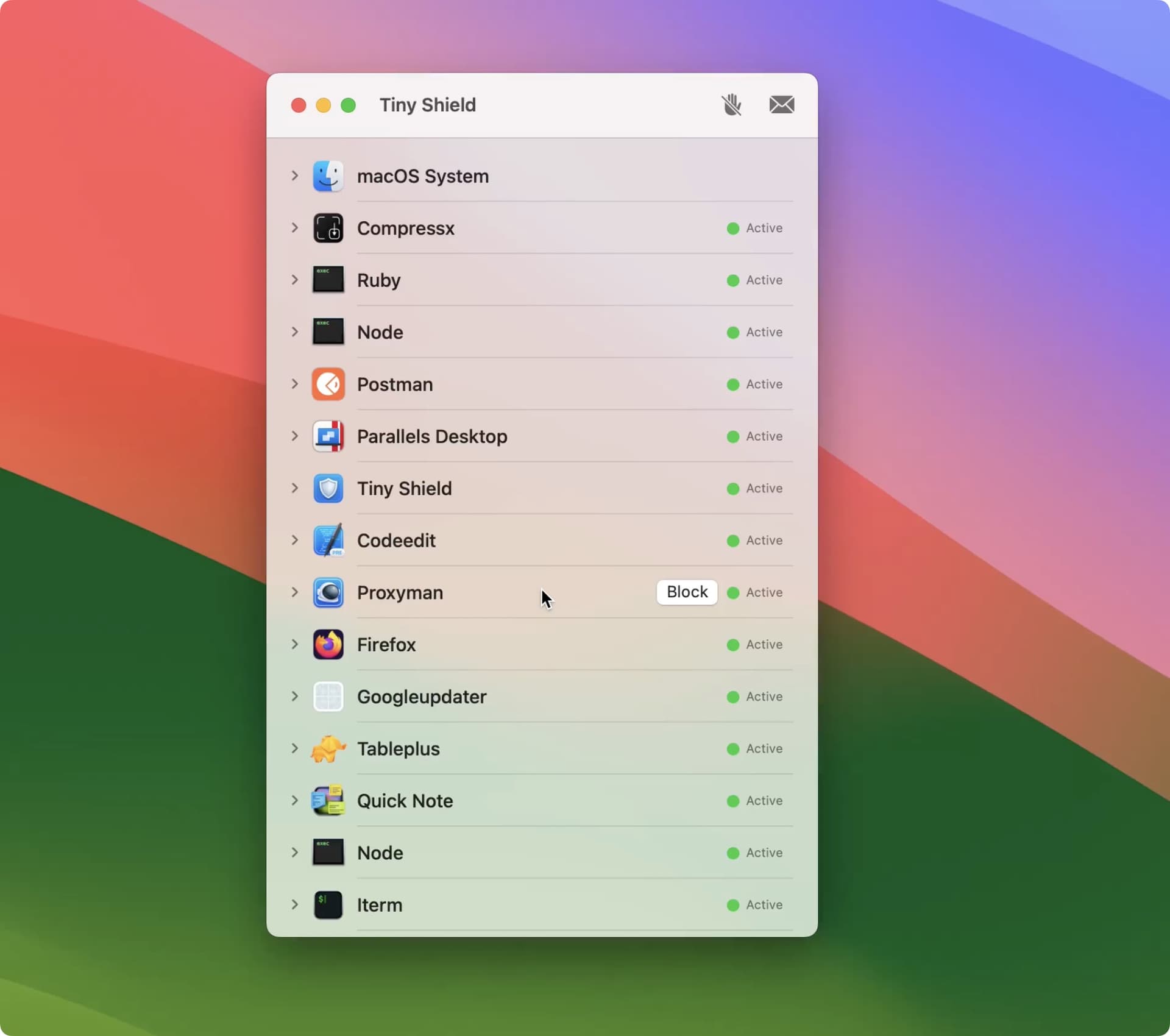
TinyShield is a native Mac firewall that lets you block exactly what you choose: a whole app, one domain, a wildcard domain, or an IP address.
Block a whole app
- Download TinyShield and finish the Network Extension setup.
- Open the app you want to block, so it shows up in TinyShield.
- Find the app in the TinyShield list.
- Right-click the app and select Add to Block List.
- Use the app again. Its connections now show as blocked in red.
Block only one domain
Blocking a whole app can break sign-in, updates, or syncing. Often you only want to stop one tracker.
- Expand the app in TinyShield to see its domains and IP addresses.
- Right-click the domain, for example an analytics host.
- Select Add to Block List.
- The rest of the app stays online.
Want to block every subdomain? Open Tools → Block List and add a wildcard rule such as *.example.com.
Method 3: Block all unknown traffic
Sometimes you do not know which app to block yet. You want new apps to ask first.
TinyShield has three connection modes. Pick one from the button in the top-right corner of the window:
| Mode | What happens | Best for |
|---|---|---|
| Allow All | Everything connects, except your Block List | Everyday use |
| Require Approval | New apps wait until you allow or block them | Catching unknown apps |
| Block All | Everything is blocked, except your Allow List | Strict privacy or focus |
Require Approval is the easiest way to block unwanted traffic before it starts:
- ✅ A new app tries to connect, and TinyShield pauses it
- ✅ You see the app name, file path, code signature, and destinations
- ✅ Choose Allow or Block, and TinyShield remembers it
- ✅ Change your mind later in Tools → App Connection Decisions
Read the full Require Approval guide and Block All guide. Require Approval and Block All are TinyShield PRO features.
Compare the options
| macOS Firewall | Hosts file | TinyShield | |
|---|---|---|---|
| Block outgoing traffic | ❌ | ✅ By domain | ✅ |
| Block one specific app | ❌ | ❌ | ✅ |
| Block one domain for one app | ❌ | ❌ | ✅ |
| Wildcard domains | ❌ | ❌ | ✅ |
| Block by IP address | ❌ | ❌ | ✅ |
| Ask before new apps connect | ❌ | ❌ | ✅ (PRO) |
| No Terminal needed | ✅ | ❌ | ✅ |
Tips for blocking safely
- Start narrow: block one domain before you block the whole app.
- Test right away: retry the action in the app and check that the row turns red.
- Watch for side effects: blocked apps may fail to sign in, update, or sync.
- Do not block macOS system services unless you know what they do.
- Keep rules tidy: review your Block List and remove rules you no longer need.
Conclusion
- The macOS firewall only blocks incoming connections.
- The hosts file can block a few domains, but not a specific app.
- TinyShield lets you block an app, a domain, a wildcard, or an IP address with a right-click, and can ask before any new app connects.
Not sure which apps to block yet? Start with how to see which apps are using the internet on Mac. Comparing firewalls? Read Little Snitch vs LuLu.
Download TinyShield and block your first app in under a minute.
Ready to Protect Your Mac?
Experience the power of TinyShield's network monitoring and protection. Keep your Mac safe from threats while maintaining optimal performance.
Download TinyShield