Install the TinyShield Network Extension
TinyShield uses Apple's Network Extension framework to monitor and filter Mac connections. The extension runs in the background with the system permissions needed for this work. The main TinyShield app does not need to run as root.
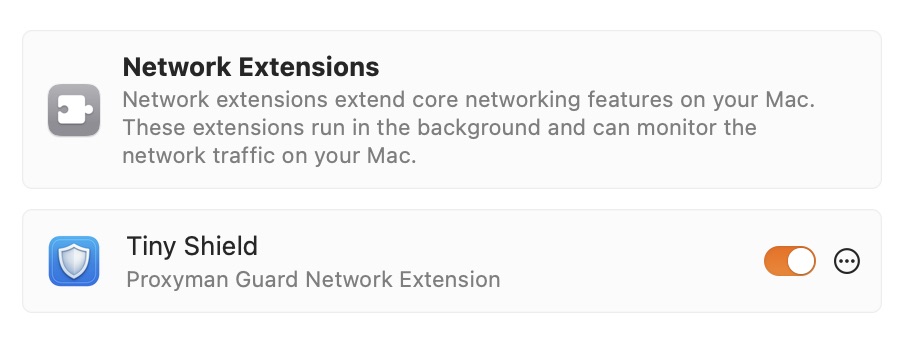
The TinyShield switch must be on in macOS Network Extensions settings.
1. Benefits
- ✅ Use Apple's supported network filtering system.
- ✅ Monitor incoming and outgoing TCP and UDP connections.
- ✅ Apply Allow List, Block List, and connection mode decisions as traffic starts.
- ✅ Keep network processing and stored connection data on your Mac.
- ✅ Run efficiently in the background.
2. Install the extension
- Move TinyShield.app to the Applications folder.
- Open TinyShield and select Get Started.
- Select Install Network Extension.
- If macOS shows System Extension Blocked, select Open System Settings.
- Open System Settings → General → Login Items & Extensions.
- Open Network Extensions and turn on Tiny Shield.
- Authenticate with Touch ID or your Mac password when asked.
- In the Filter Network Content alert, select Allow.
- Return to TinyShield and wait for Setup Complete.
TinyShield only works from the Applications folder because macOS ties the extension to the installed app.
3. Check the extension
The setup is complete when:
- TinyShield shows its main connection list.
- The Tiny Shield Network Extension switch is on in System Settings.
- New app connections appear in the list.
- Blocking a test destination changes its status to blocked.
4. Fix common setup problems
TinyShield keeps waiting for approval
- Open Network Extensions in System Settings and confirm that Tiny Shield is on.
- Check for a hidden Filter Network Content alert.
- Quit and reopen TinyShield after approval.
No connections appear
- Confirm that the extension is enabled.
- Make a new network request after TinyShield opens.
- Temporarily pause another VPN or network filter to check for a conflict.
The extension needs to be installed again
- Choose Install Network Extension… from the app menu and approve it again.
- A new app build may update the extension as part of installation.
Turning off or uninstalling the extension stops TinyShield monitoring and blocking. Use the TinyShield uninstall command when you want to remove the app and its extension together.