How to See Which Apps Are Using the Internet on Mac
Find out which Mac apps are connecting to the internet and where they send data. Try Activity Monitor, Terminal, and TinyShield, from simple to detailed.
Your Mac feels slow, your fan is spinning, or your upload speed jumps while you are not doing anything. You start to wonder: which app is using the internet right now, and where is it sending data?
macOS does not have one screen that answers this. It gives you a few separate tools, and each one shows a different part of the picture.
In this guide, you will learn:
- How to see network usage per app with Activity Monitor
- How to list live connections with Terminal commands
- Why IP addresses alone are hard to understand
- How to see every app, domain, and country in one place with TinyShield
- What to do when you find a connection you do not trust
Why check app network activity?
Most connections are normal. Apps check for updates, sync files, load ads, and send crash reports. Still, it is useful to know what is happening:
- Privacy: See which apps send data to analytics or tracking servers.
- Performance: Find the app that uses your bandwidth.
- Security: Spot an unknown process that talks to the internet.
- Debugging: Check whether your own app calls the right server.
- Data limits: Save mobile data when you use a hotspot.
Method 1: Activity Monitor (built-in)
Activity Monitor is the quickest way to see how much data each app uses.
- Open Activity Monitor from Applications → Utilities, or search it with Spotlight.
- Select the Network tab.
- Click the Sent Bytes or Rcvd Bytes column to sort.
- The apps at the top are using the most data.
What Activity Monitor is good for:
- ✅ Built into every Mac, nothing to install
- ✅ Shows bytes and packets sent and received per process
What it cannot tell you:
- ❌ Where the data goes: no domains, no IP addresses
- ❌ Connection history after a process quits
- ❌ Any way to block a connection
Method 2: Terminal commands (built-in)
If you are comfortable with Terminal, macOS includes two useful commands.
List open internet connections with lsof:
sudo lsof -i -P -n | grep ESTABLISHED
-ishows internet connections.-Pshows port numbers instead of service names.-nshows IP addresses instead of looking up hostnames.
Each line shows the process name, its PID, and the remote address, for example Slack 943 ... 192.168.1.17:50765->13.251.235.250:443.
Watch live usage with nettop:
nettop -m tcp
nettop refreshes every second and groups connections under each process. Press q to quit.
Terminal commands are powerful, but:
- ❌ The output is long and hard to scan
- ❌ You mostly see IP addresses, not friendly domain names
- ❌ It is a snapshot: a short connection can appear and disappear before you notice
- ❌ You still cannot block anything from here
The problem: IP addresses do not explain much
Look at the screenshot below. It shows Slack connecting to many remote servers, but you only see raw addresses such as ec2-13-251-235-250....
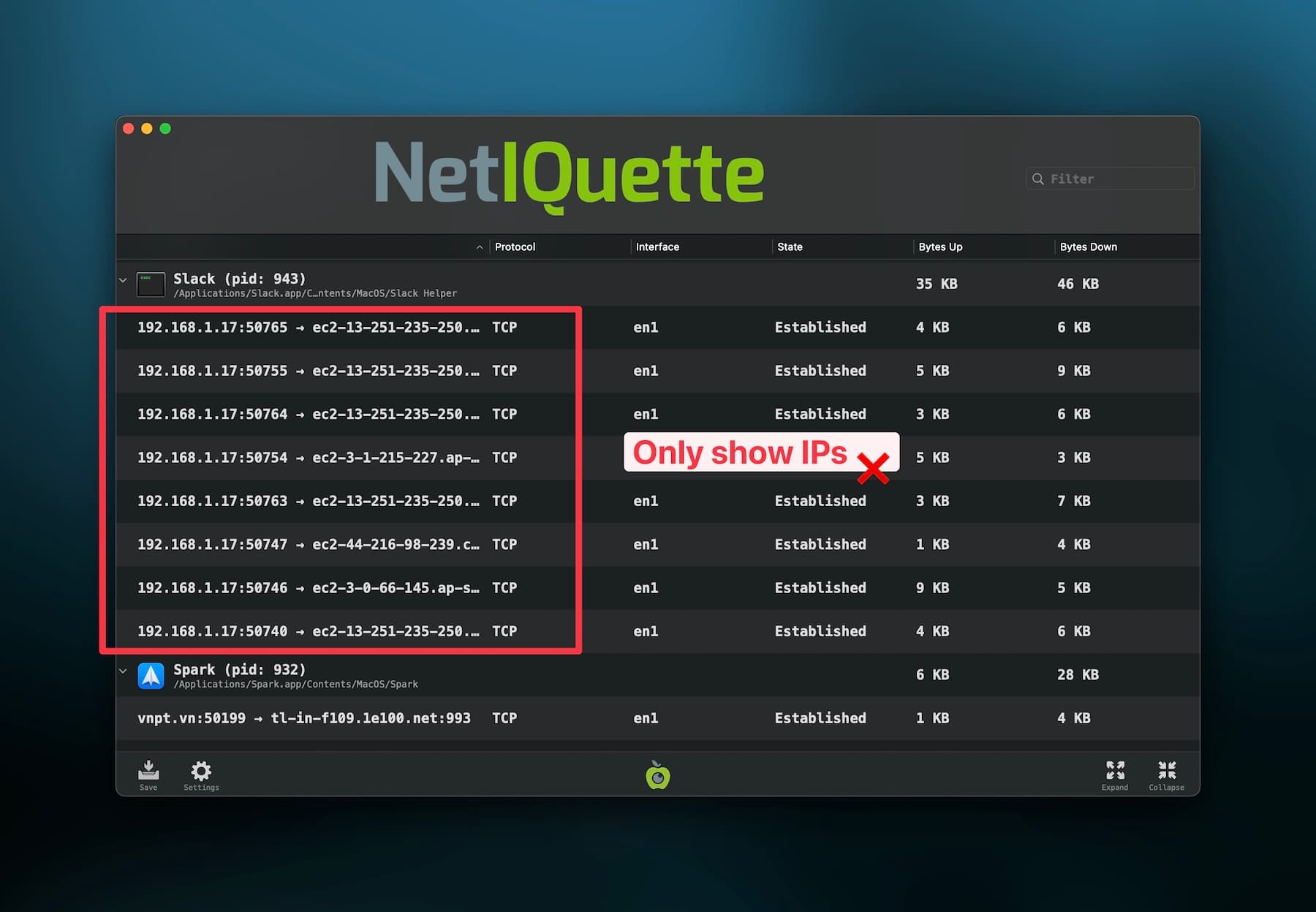
An IP address often belongs to a cloud provider, not the company you expect. One app can also use dozens of addresses. To make a decision, you usually need:
- The app that opened the connection
- The domain name, like
api.branch.iooraccounts.spotify.com - The country where the server is located
- Whether the connection is still active
Method 3: TinyShield (app, domain, and country in one view)
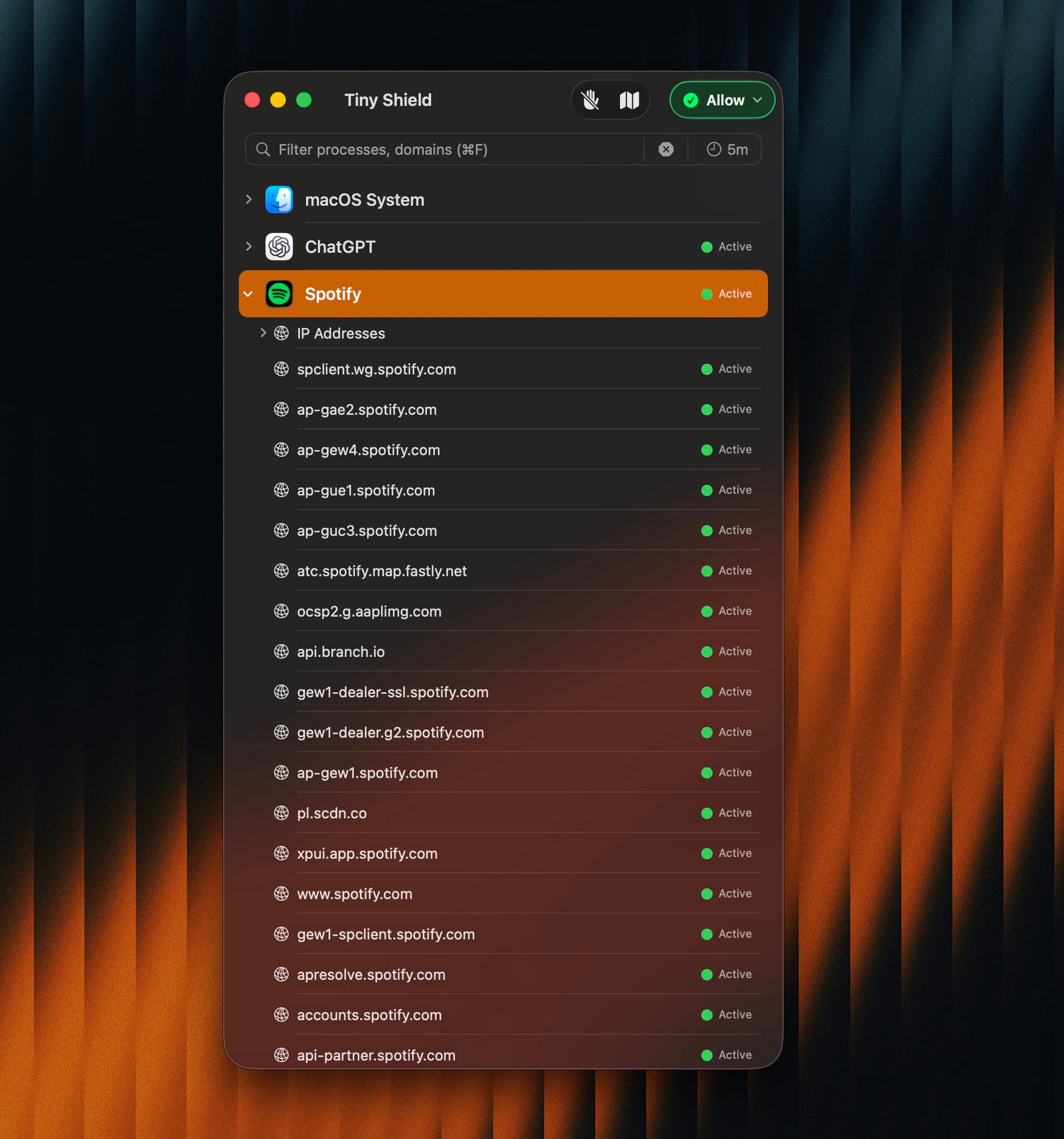
TinyShield is a native macOS app that shows every network connection grouped by app. Expand an app to see the exact domains and IP addresses it contacted.
How to start:
- Download TinyShield and move it to the Applications folder.
- Open TinyShield and select Get Started.
- Install the Network Extension and allow Filter Network Content in System Settings. See the setup guide.
- Open any app that uses the internet.
- Expand the app in TinyShield to see its domains and IP addresses.
In the screenshot below, Spotify is expanded. You can see each hostname it used, such as spclient.wg.spotify.com and api.branch.io, and whether the connection is active.
What you get with TinyShield:
- ✅ Connections grouped by app, including macOS system services
- ✅ Hostnames, IP addresses, ports, and connection status
- ✅ A search field to find an app or domain quickly
- ✅ A time filter to focus on recent activity
- ✅ A GeoIP map to see which countries your apps connect to
- ✅ All monitored data stays on your Mac
TinyShield records connection details, not the content of your traffic. It does not decrypt HTTPS requests. Read more in the network monitoring guide.
See where your data goes on a map
Select the Map button in the TinyShield toolbar to see destinations on a world map. Right-click an app or domain and choose Show in Map to focus on its traffic.
GeoIP locations are approximate. VPNs, CDNs, and Apple Private Relay can show a different location from the real service. Use the map as context, not as a safety verdict. See the GeoIP map guide.
Quick comparison
| Tool | Per-app usage | Domains | Live history | Block traffic |
|---|---|---|---|---|
| Activity Monitor | ✅ | ❌ | ❌ | ❌ |
lsof / nettop | ✅ | Partial | ❌ | ❌ |
| TinyShield | ✅ | ✅ | ✅ | ✅ |
Found a connection you do not trust?
Do not block everything at once. Start small:
- Search the domain to learn who owns it.
- Block only one domain first, so the rest of the app keeps working.
- Block the whole app only when you do not need it online.
- Test the app after adding a rule, and remove the rule if something breaks.
In TinyShield, right-click the app, domain, or IP address and select Add to Block List. See how to block apps and domains for details.
Conclusion
- Use Activity Monitor to see which app uses the most data.
- Use
lsofornettopfor a quick technical snapshot. - Use TinyShield when you want to see every app, domain, and country in one clean view, then block what you do not want.
Want to compare TinyShield with other Mac firewalls? Read our Little Snitch comparison and LuLu comparison.
Download TinyShield and see which apps are using your internet in less than a minute.
Ready to Protect Your Mac?
Experience the power of TinyShield's network monitoring and protection. Keep your Mac safe from threats while maintaining optimal performance.
Download TinyShield