Monitor Bandwidth Usage by App on Mac
The Bandwidth Monitor shows how much data each app, domain, and IP address sends and receives on your Mac. Every row in the connection list has a small live chart, and one click opens a full bandwidth chart for that row.
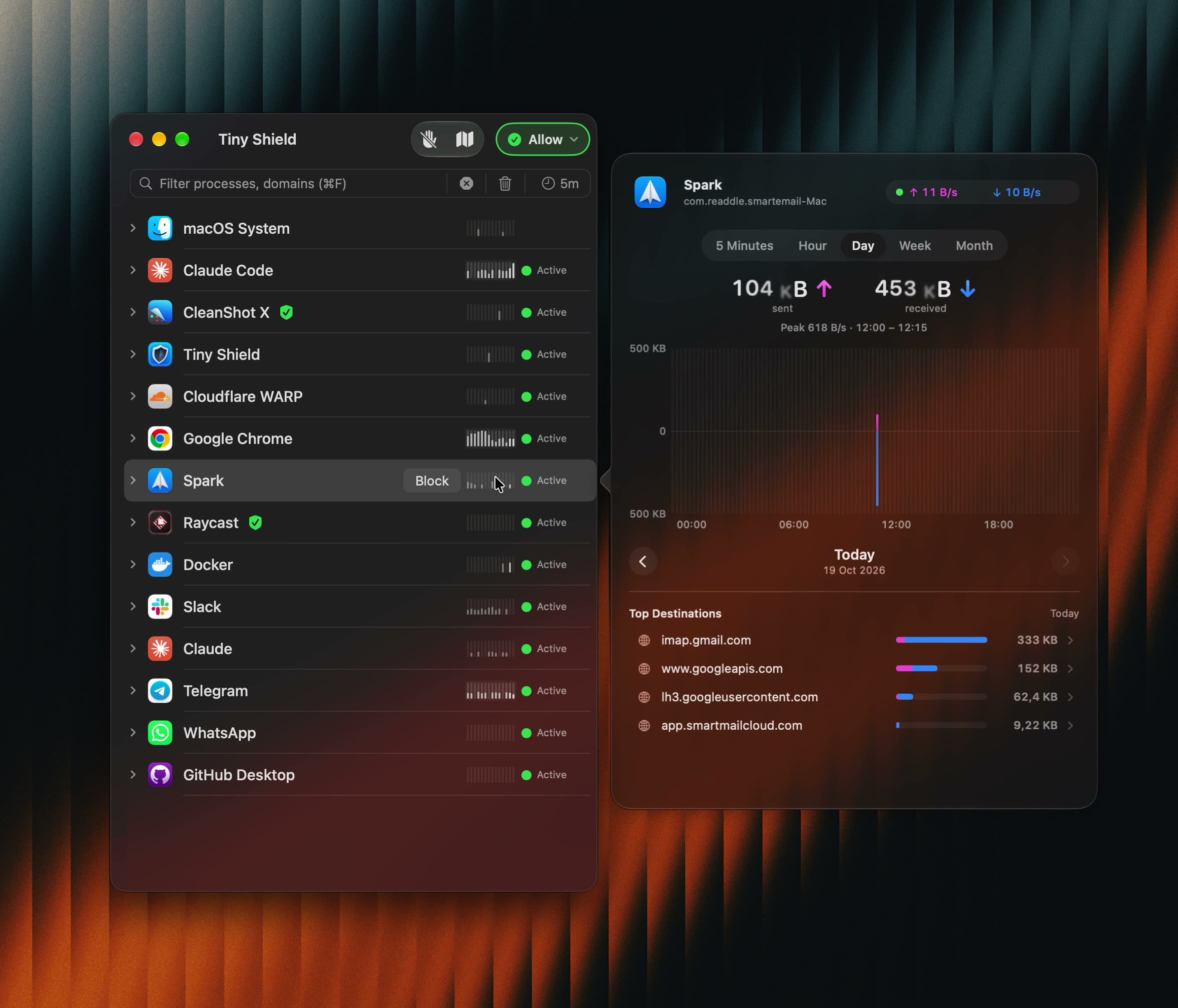
Click an app's sparkline to see its sent and received data, peak usage, and top destinations.
1. What it is
The Bandwidth Monitor adds data usage to the TinyShield connection list:
- Sparkline: each app, domain, and IP address row shows a small bar chart of its traffic over the last minute. Busy rows stand out as you scroll.
- Bandwidth chart: click a sparkline to open a chart of data sent and received, with totals, peak usage, and live upload and download speed.
- Top destinations: below the chart, TinyShield lists where that app sent and received the most data in the selected period.
TinyShield only counts bytes. It never reads the content of your traffic, and bandwidth history stays on your Mac.
2. Benefits
- ✅ Find which app is using your bandwidth or your data plan.
- ✅ Catch apps that upload more than you expect, such as crash reporters, analytics, or sync services.
- ✅ See when usage peaked and which domain or IP address caused it.
- ✅ Compare an app's usage over an hour, a day, a week, or a month.
- ✅ Decide what to block with real numbers, then block the app or destination from the same list.
3. Open the bandwidth chart
- Open TinyShield and let it collect a few connections.
- Find an app, domain, or IP address in the connection list.
- Click the sparkline on the right side of the row.
- Read the chart for that row.
You can also right-click a row and select Show Bandwidth….
4. Read the chart
| Part | What it shows |
|---|---|
| Live speed | Current upload (↑) and download (↓) speed, in the top-right corner. |
| Sent and received | Total data uploaded and downloaded in the selected period. |
| Peak | The highest speed in the period and when it happened. |
| Chart | Sent data above the center line, received data below it. |
| Top Destinations | The domains or IP addresses that used the most data. |
Select a destination in the list to see its own chart. Use the back button at the top of the chart to return to the app.
5. Change the time period
Use the tabs above the chart to choose a period:
- 5 Minutes: live traffic, updated every second.
- Hour, Day, Week, and Month: saved history for each row.
Use the ‹ and › arrows below the chart to move to an earlier or later period, such as yesterday or last week.
The 5 Minutes view is free. Hour, Day, Week, and Month history are TinyShield PRO features. See Pricing.
6. Clear bandwidth history
Clear All and Delete in TinyShield also remove the bandwidth history for the cleared rows.